With the release of AMOS V25, workflow configuration in APN 612 — Workflow Administration has gained a more flexible option for evaluating complex conditions. The Data Source Condition allows workflow rules to evaluate database conditions through a defined SQL data source rather than relying only on predefined comparison logic.
When the workflow is triggered, AMOS executes the selected SQL data source and evaluates the condition based on whether the query returns a row. Combined with AMOS standard and workflow-specific wildcards, this allows the same condition to respond dynamically to the context of each workflow execution.
This guide explains how the Data Source Condition works, how to configure it in APN 612, and which SQL patterns help keep workflow logic reliable and responsive.
The Core Concepts
Before we dive into the setup, let's look at the three pillars of this new condition:
SQL: The foundation of the validation.
ROW: The existence logic (if a row exists, it's true).
WILDCARDS: The dynamic context that makes it flexible.
AMOS Data Source Condition Logic in Practice
The evaluation process is straightforward but critical to understand:
The Trigger: AMOS starts your configured workflow and begins evaluating its rule conditions.
The Execution: The SQL data source you've selected executes, injecting any configured wildcard values into the query.
The Verdict: The outcome is purely based on row existence.
TRUE (Fulfilled): If the query returns at least one row.
FALSE (Not Fulfilled): If the query returns no results.
Configuring a Data Source Condition in APN 612
Let's walk through the exact sequence in Workflow Administration to add this condition to your rule.
Step 1: Initiating the New Condition
Start in the Conditions Table of your workflow rule. Click New Condition, select Data Source Condition from the list, and click Next.
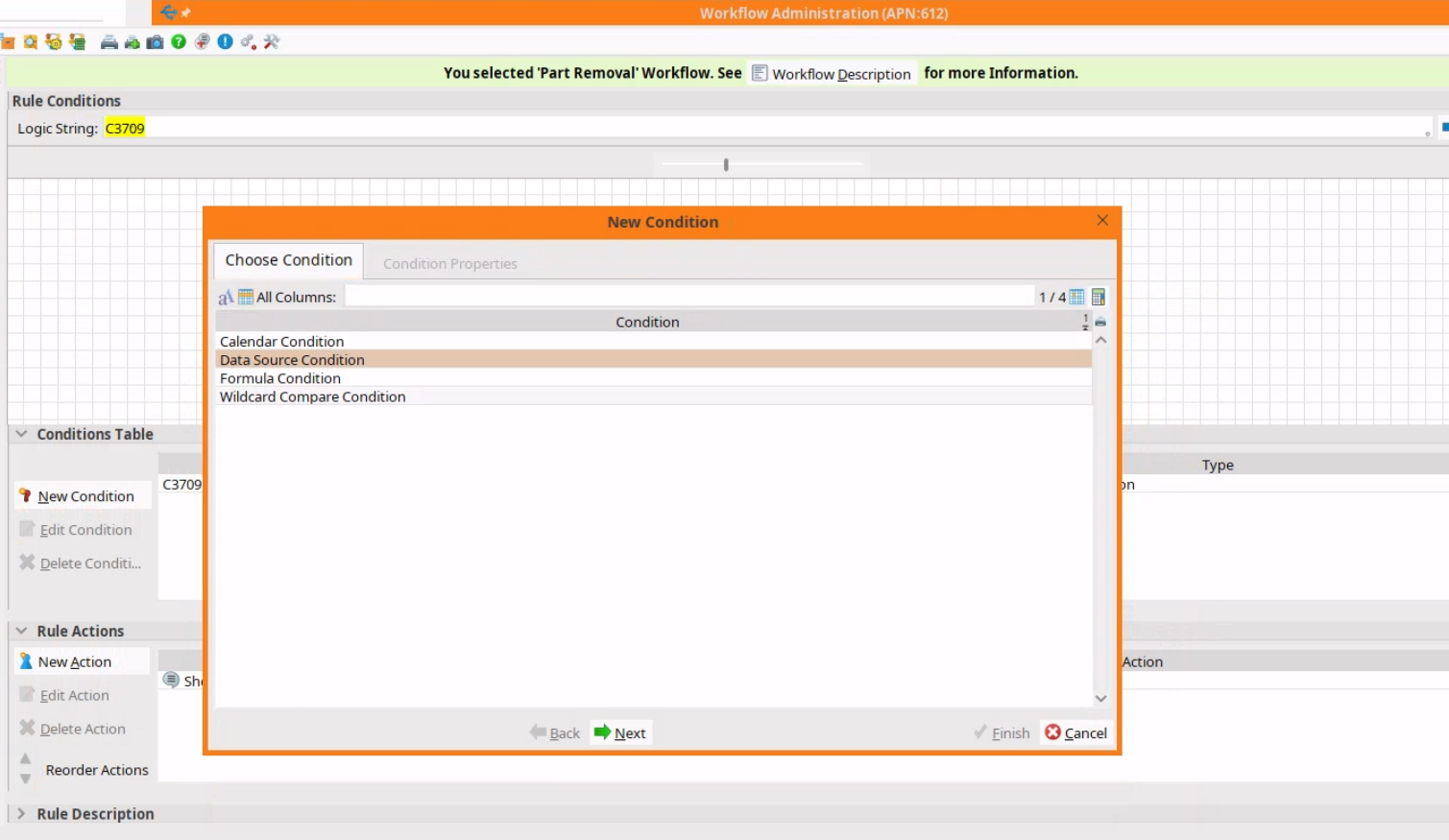
Selecting "Data Source Condition" from the New Condition menu
Step 2: Accessing Condition Properties
You'll now see the Condition Properties tab. Here you can review fields for the Selected Data source, Description, and Available Wildcards. To proceed, click the Select Data source button.
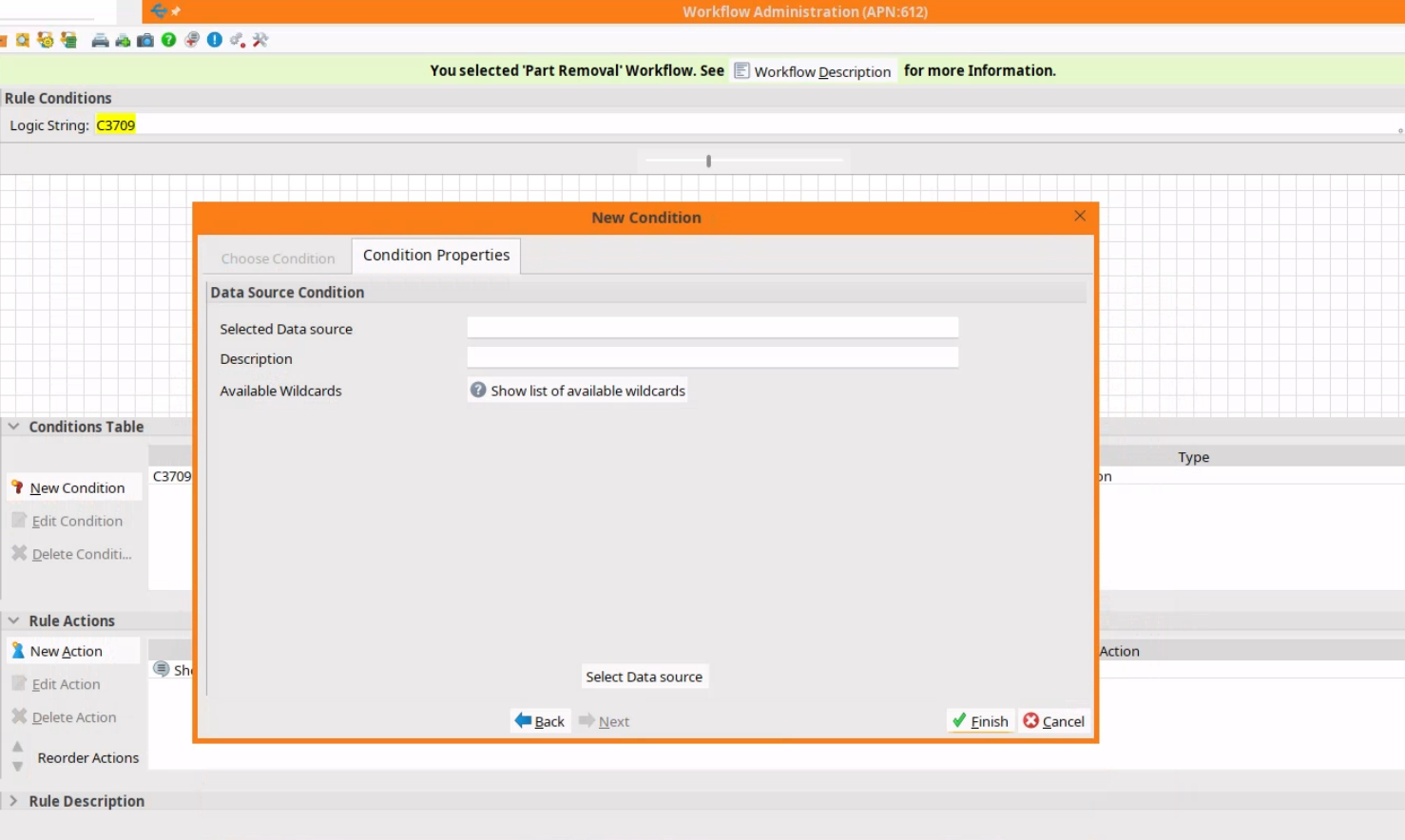
Clicking the "Select Data source" button in properties
Step 3: Assigning Your SQL Data Source
This is where the magic happens. You can select an existing data source from Workflow Administration, or use New SQL Editor Data Source to create one from scratch. If creating a new one, you'll open the editor, define your query, and save it.
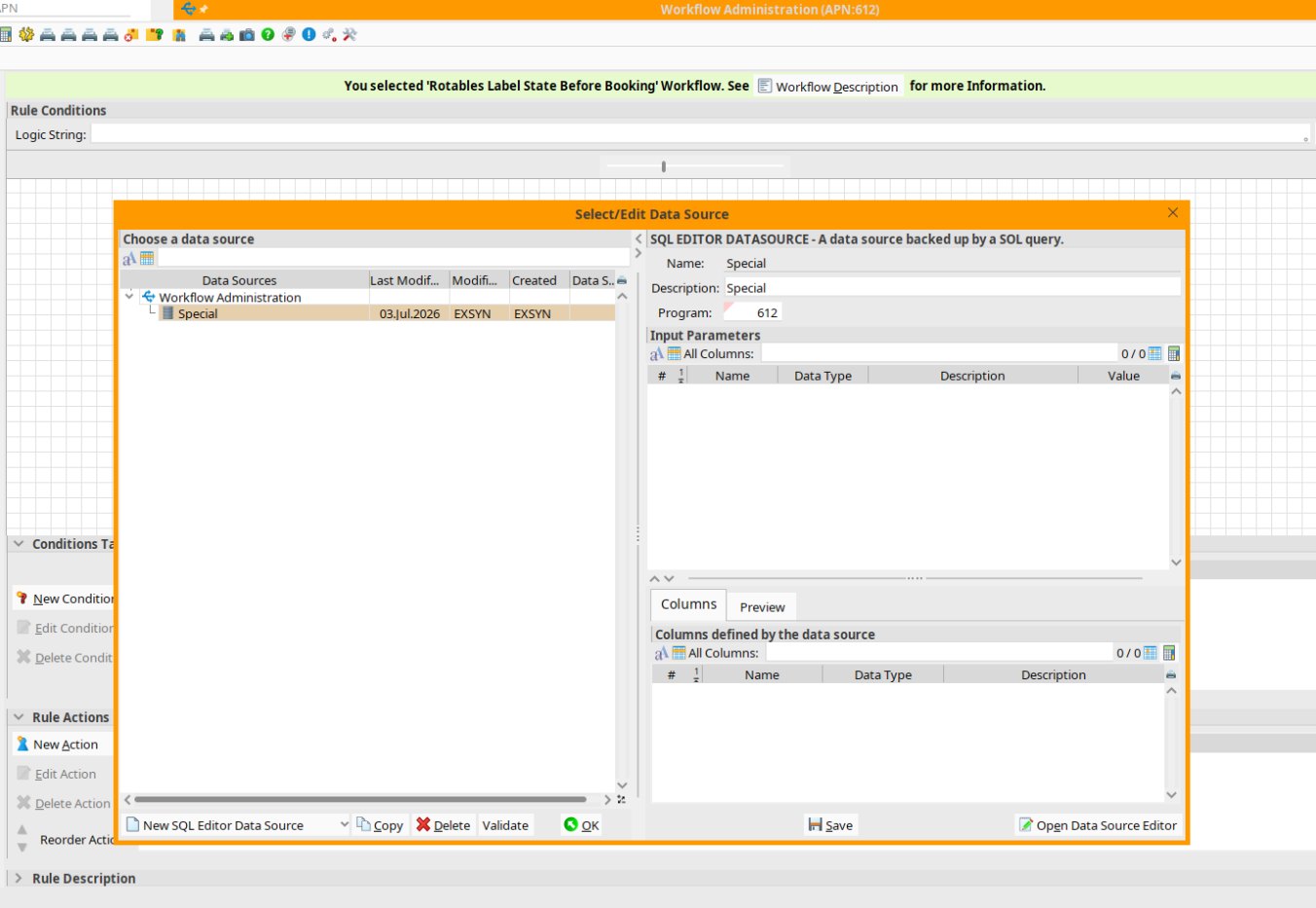
The Select/Edit Data Source window
Step 4: Confirming the Selection
Once selected, verify that your chosen data source name and description appear correctly back in the condition properties window. When you are satisfied, click Finish.
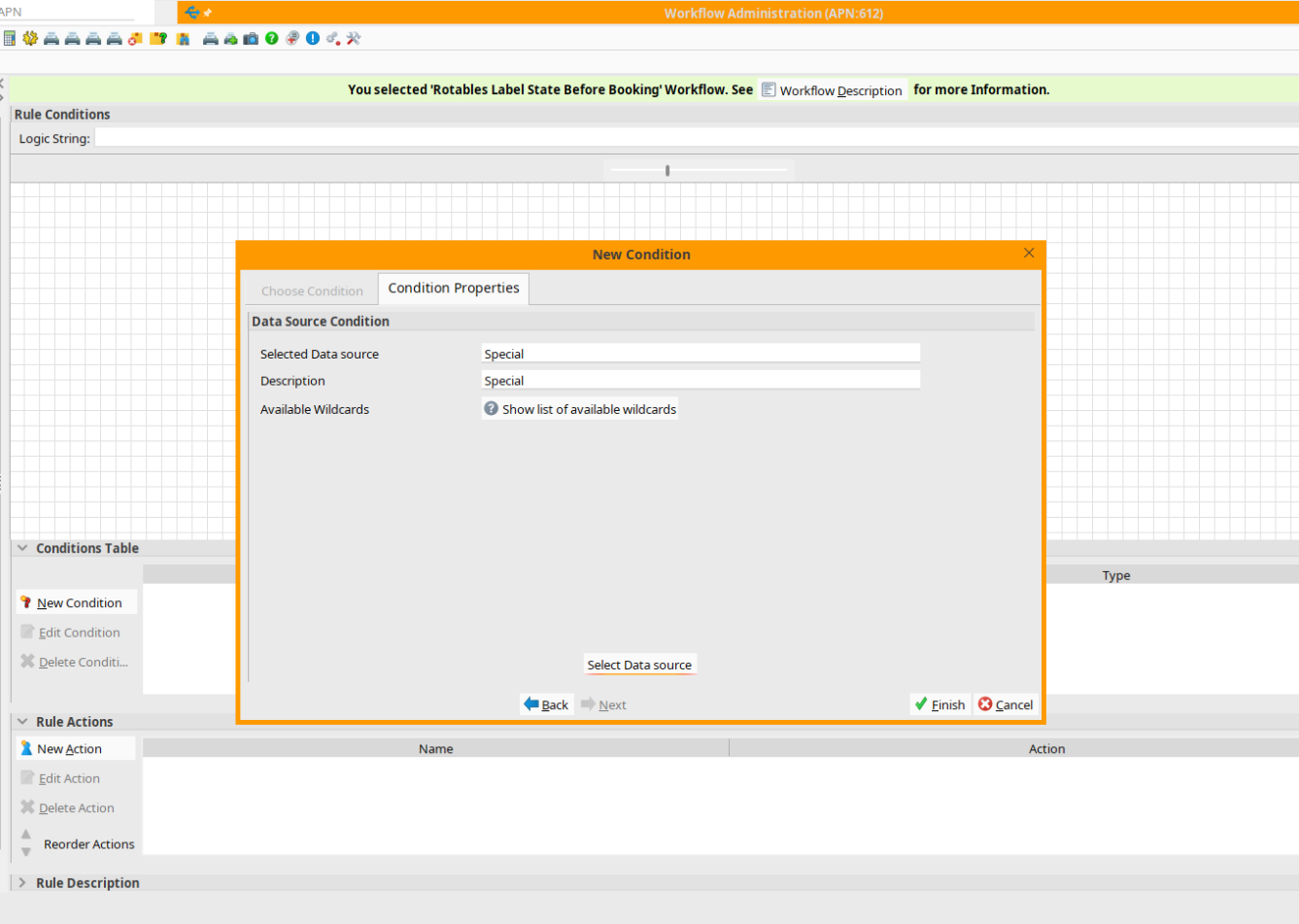
Verifying the selected data source in properties before clicking Finish
Step 5: Verifying the Rule Canvas
Finally, check your work. The new Data Source Condition should now be visible in both the rule canvas and the Conditions Table. In our example below, the data source was named “Special”. Always confirm the condition ID, description, type, and logic string before moving on to configure your rule actions.
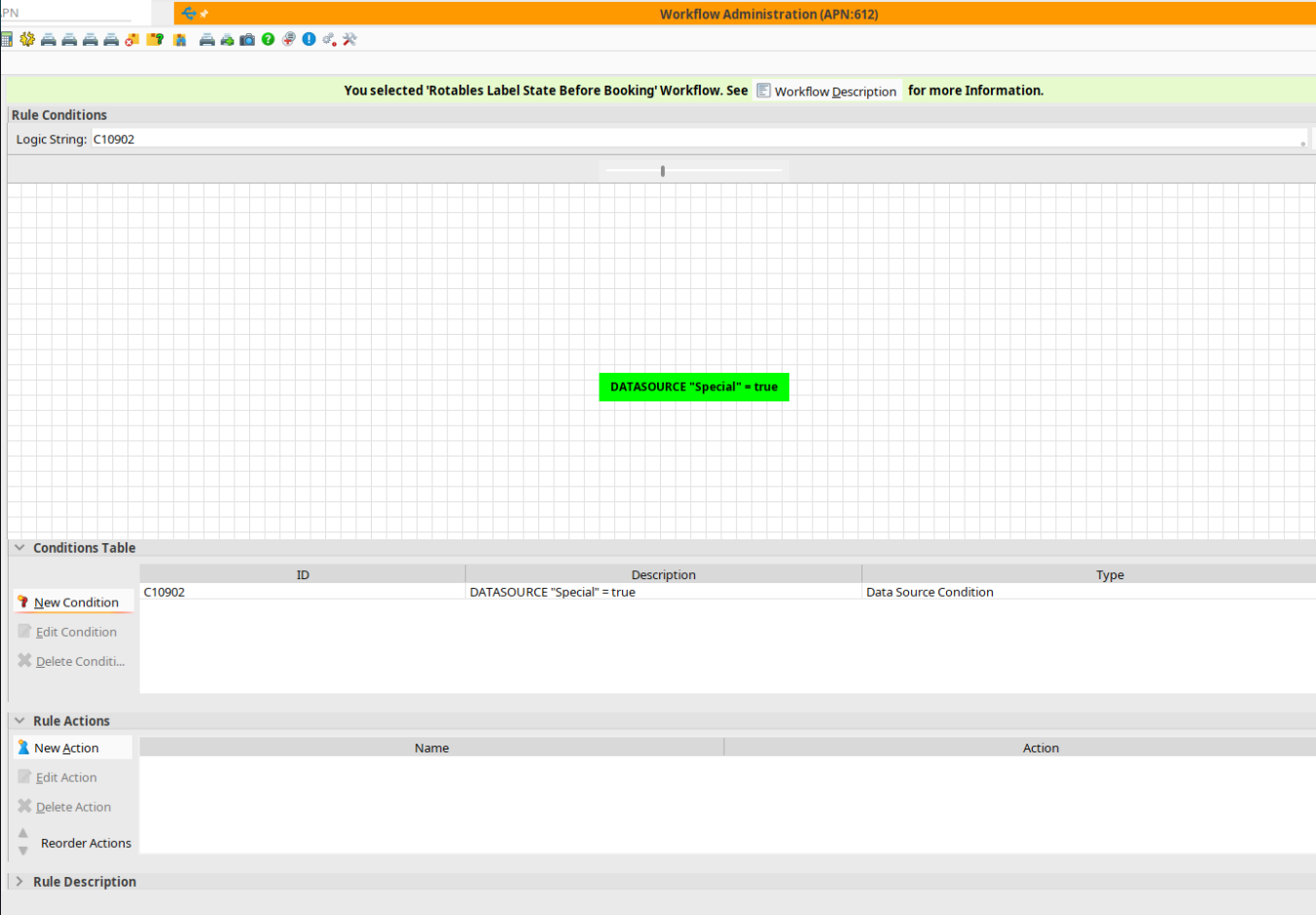
The final condition visible in the rule canvas and table
Crucial Reminder:The condition is fulfilled when the SQL query returns at least one row. If no rows are returned, the condition fails.
Using Wildcards in AMOS Workflow Conditions
A static SQL query isn't very useful in a dynamic workflow. Wildcards are how you pass the current workflow context into your SQL data source. This allows the exact same condition to evaluate different records every single time the workflow runs.
There are two main types you'll use:
AMOS Standard Wildcards: These are available across all workflows and are used for common AMOS context.
Workflow-Specific Wildcards: These are unique to the workflow you are in. For example, the Open Program workflow specifically provides the wildcard programId.
Not sure what's available? You can always check the workflow description or simply click the Show list of available wildcards button while you are creating or editing the Data Source Condition.
SQL Best Practices for Reliable Workflow Conditions
Because this condition checks strictly for row existence and not a calculated total, you must design your SQL differently than you might for a report. You want a matching business condition to return at least one row, and a non-matching condition to return nothing.
USE: A query designed to return one or more matching rows.
This maps directly to a TRUE condition.
DO NOT USE: SELECT COUNT(*)
A count will always return a row, even if the count value is zero, meaning your condition will always evaluate to TRUE.
DO NOT USE: SELECT *
The condition doesn't need every column in the table. Return only a simple constant (like 1) or the specific field needed for validation to save resources.
An Illustrative Query Pattern
While the exact tables and wildcard syntax will depend on your specific AMOS setup, a typical, highly efficient existence-based query looks like this:
SELECT 1
FROM relevant_table rt
WHERE rt.business_key = <workflow_wildcard>
  AND rt.status = 'OPEN'
Performance Considerations for AMOS Workflow Queries
When you inject SQL directly into workflow triggers, performance matters. A slow query will slow down your entire workflow process.
Keep the query focused:
Return only what is required to prove the record exists (e.g., SELECT 1).
Apply selective filters as early in the query as possible.
Avoid unnecessary joins and nested subqueries at all costs.
Protect workflow responsiveness:
Carefully review any queries that scan large transaction tables.
Ensure you are using appropriate database indexes for your filter and join columns.
Always test your query with realistic, production-like data volumes before deploying it to a live environment.
Pre-Flight Checklist
Before you activate your new workflow rule, run through this final checklist to ensure it will behave exactly as expected:
I have confirmed that a matching business case returns at least one row.
I have confirmed that a non-matching case returns zero rows.
I have tested every wildcard used with both valid and missing values.
I have reviewed the query execution time to ensure minimal database impact.
I have documented the data source purpose and the expected results for future administrators.

Frequently Asked Questions About AMOS Data Source Conditions
-
A Data Source Condition in APN 612 — Workflow Administration allows a workflow rule to evaluate a selected SQL data source. The condition is fulfilled when the query returns at least one row and is not fulfilled when no rows are returned.
-
Workflow conditions are configured through APN 612 — Workflow Administration. The Data Source Condition can be added to a workflow rule from the Conditions Table.
-
The result is based on row existence. A query returning one or more rows evaluates as fulfilled, while a query returning no rows evaluates as not fulfilled.
-
A COUNT(*) query still returns a row even when the count is zero. Because the Data Source Condition evaluates row existence rather than the numeric value returned, that pattern can cause the condition to evaluate as TRUE when the intended business condition is not met.
-
Workflow-specific wildcards provide contextual values that are unique to a particular workflow. They can be passed into the SQL data source so the same condition can evaluate different records dynamically each time the workflow runs.