3 Practical Ways to Generate Reports With AMOS
The more you work with AMOS, the better you understand it, and the more data you want to extract from it. As one of our customers (an experienced, long-time AMOS user) put it:
“The longer you use the system, the more reports you need.”
It is no surprise that reporting requirements naturally grow as AMOS usage deepens. The system offers several ways to generate, access, and automate reports, allowing both new and experienced users to expand their reporting capabilities as operational needs evolve.
Reports can be added as links in the Applications menu, assigned an APN number for direct access, or scheduled for automatic delivery by email.
Below, we highlight three practical ways to generate reports in AMOS.
Method 1: Creating Reports with APN 966 — Report Designer
APN 966 — Report Designer allows users to create reports using custom data sources and structured report layouts. It can support anything from relatively simple reports to more complex reporting requirements.
Access to Report Designer is typically controlled within the AMOS environment, and Swiss-AS provides dedicated Report Designer training for administrators and key users who work with custom reports and SQL data sources.
To create a basic report:
Open APN 966 — Report Designer.
Select the Report button to open the Report Browser.

3. Click on the New Folder/New Report to create a new folder/new report.
4. Give a name for the report.
5. Add a table element to Content Area.
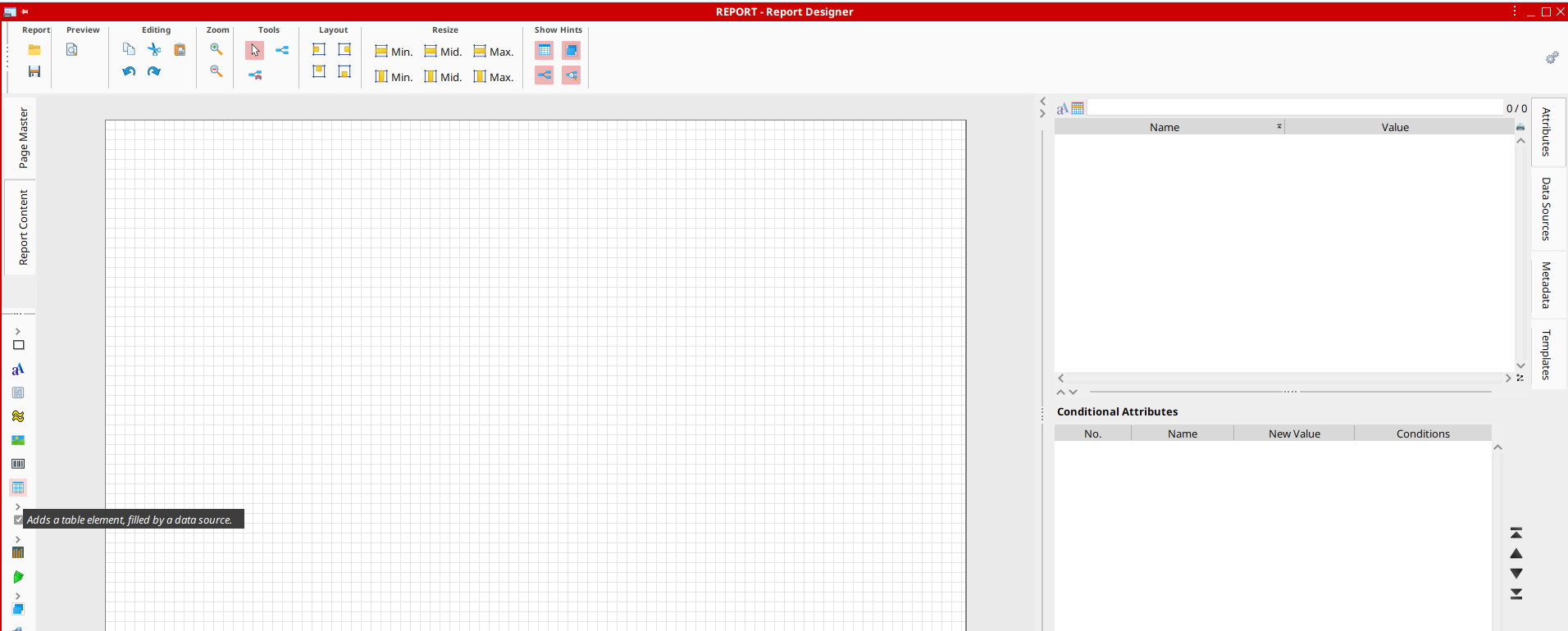
6. Navigate to the Data Source.
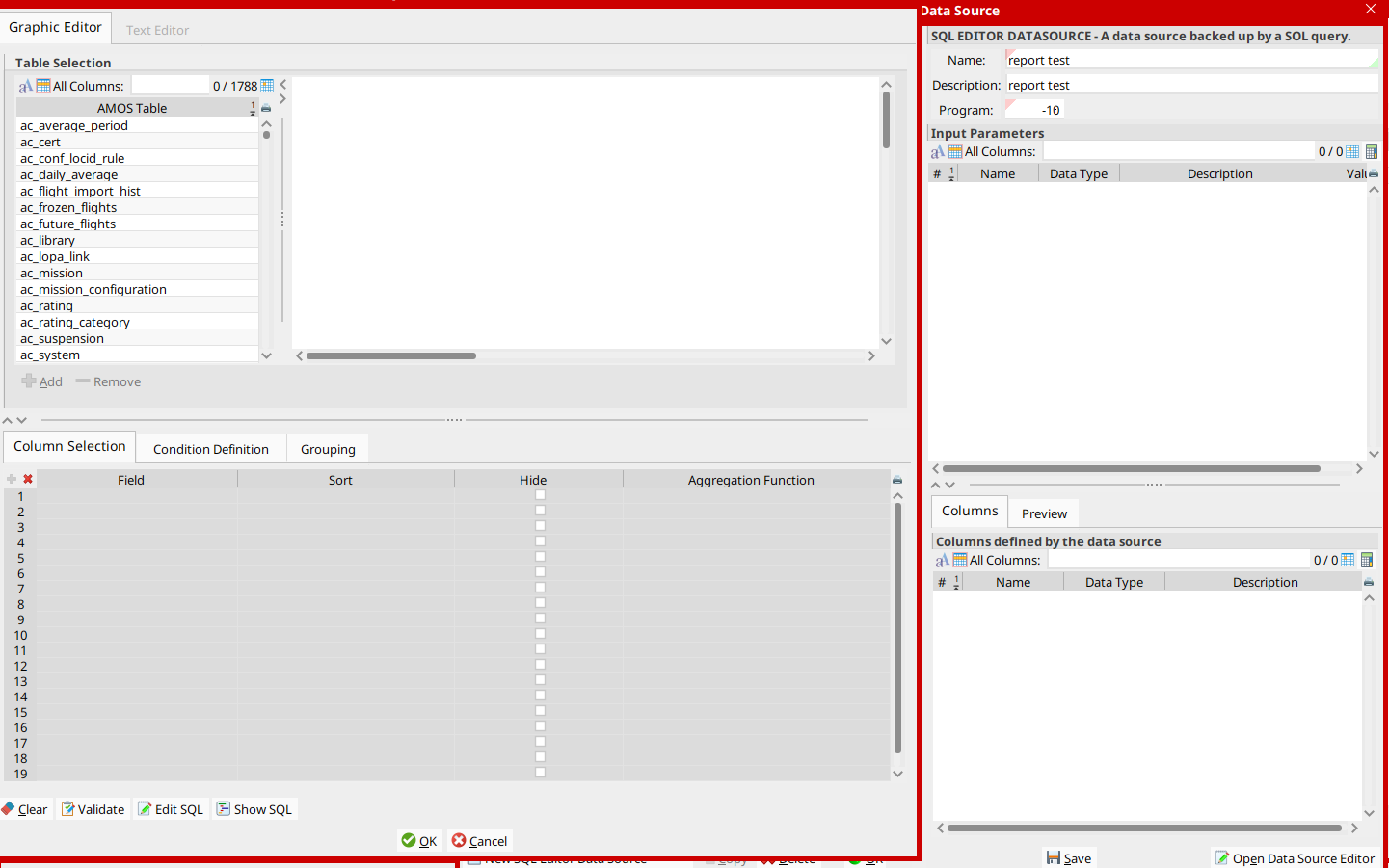
7. Click on New Data Source-> New SQL Editor Data Source and name the source.
8. Click on Edit SQL to add the query to the data source, then on OK and Save to save the data source.
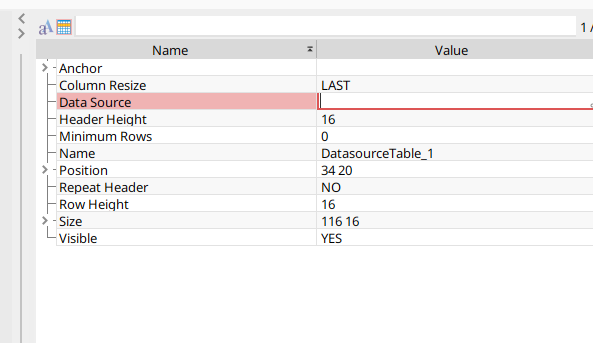
9. In the Attributes of the table element, set the Data Source to the newly added data source.
10. Rename the table columns to the required headers.
11. Drag and drop the data source fields to the table columns.
12. Click on Preview to preview the report.
Report Designer is particularly useful when the requirement extends beyond extracting raw data, and the information needs to be presented in a consistent report structure. Swiss-AS's current training material for APN 966 covers linking SQL data sources to report objects, creating report layouts, exporting reports, and making reports accessible through the AMOS application tree.
Method 2: Making SQL Reports Accessible Through the Web-Drive
Not every reporting requirement needs a complete Report Designer layout. When users already have an SQL query that produces the information they need, the query can be stored in the AMOS web-drive and made accessible through the Applications menu.
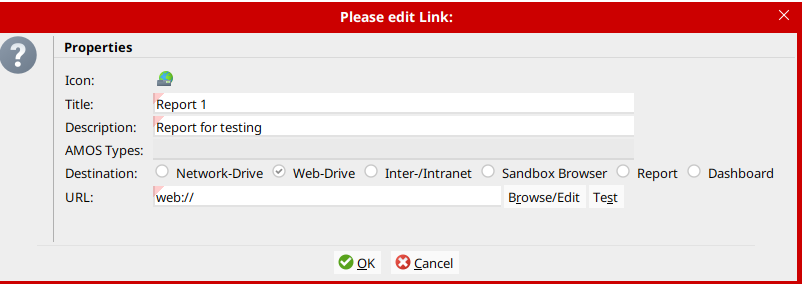
Using APN 10 — Customize Applications, a link can be created in the appropriate menu location and connected to the stored SQL file.
The basic setup is:
Store the required SQL query in the web-drive.
Open APN 10 — Customize Applications.
Create a New Link in the required menu location.
Point the link to the SQL file stored in the web-drive.
This approach provides users with quick access to frequently used custom SQL reports without requiring them to locate or run the query manually each time.
Method 3: Automating Reports with APN 2606 — AMOS Scheduler
Some reports are not required on demand. They need to be generated every day, week, or month and distributed automatically to the people who rely on them.
For recurring SQL reports, APN 2606 — AMOS Scheduler can be used together with the DataSourceExporterTask to automate report generation and delivery. AMOS Scheduler is also used elsewhere in AMOS for recurring system tasks and scheduled data processes.
A scheduled report can be configured as follows:
Open APN 2606 — AMOS Scheduler.
Create a New Scheduler Task and select DataSourceExporterTask.
Assign a name to the task and enter the required query in SQL Source.
Select the required output format.
Define whether the generated report should be saved to a shared location or distributed by email.
If email distribution is selected, enter the required recipients.
Define the schedule and frequency for the task.
Save the configuration to activate the scheduled reporting process.
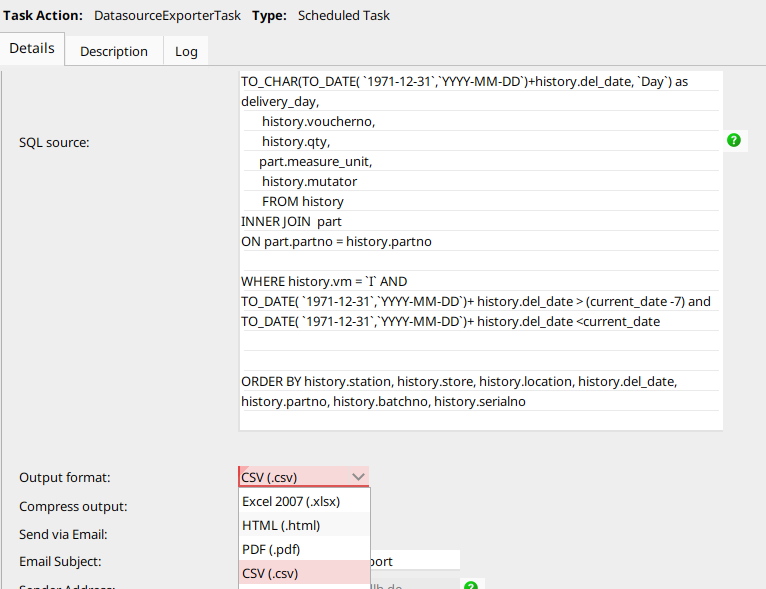
This method is particularly useful for recurring operational reports where the underlying query and reporting frequency are already defined and manual generation adds little value.
Which AMOS Reporting Method Should You Use?
The most appropriate reporting method depends on what the user needs to achieve.
APN 966 — Report Designer is suitable when the report requires a defined structure, layout and presentation and may need to combine SQL data with AMOS report objects.
SQL through the web-drive is useful when a custom query already provides the required information and users mainly need fast, repeatable access to the result.
APN 2606 — AMOS Scheduler is better suited to reports that need to be generated and distributed repeatedly according to a defined schedule.
In practice, an organisation may use all three approaches. The important distinction is whether the reporting requirement is primarily about presentation, on-demand access or automation.

From AMOS Reporting to Engineering Insight
Generating the report is only one part of the reporting process.
As reporting requirements grow, engineering teams may find themselves repeatedly extracting data, maintaining SQL queries, combining information from different sources and preparing similar analyses for different stakeholders. The technical reporting method may work correctly while the overall reporting workflow still requires significant manual preparation.
This becomes particularly relevant when organisations want to move beyond static reporting towards interactive analysis of Maintenance and Engineering performance.
The question then changes from:
“How can we generate this report?”
to:
“How can engineers use this information to understand what is driving the result?”
For more complex performance analysis, analytics environments can complement native AMOS reporting by allowing teams to investigate operational trends, compare performance and move from recurring reports towards more interactive engineering analysis.
Frequently Asked Questions About Reporting in AMOS
-
APN 966 — Report Designer is an AMOS reporting tool used to create structured reports using report objects and custom data sources. It can connect SQL data sources to tables and other report elements and supports the creation and customisation of AMOS reports. Swiss-AS provides dedicated Report Designer training for administrators and key users working with this functionality.
-
Yes. Recurring SQL reports can be configured through APN 2606 — AMOS Scheduler. Using a DataSourceExporterTask, users can define the SQL source, output format, destination or email recipients and the schedule on which the report should be generated.
-
A custom SQL query can be stored in the AMOS web-drive and linked through APN 10 — Customize Applications. This allows frequently used reports to be accessed directly from an appropriate location in the Applications menu.
-
Report Designer and AMOS Scheduler address different requirements. Report Designer is useful when the structure and presentation of a report need to be designed, while AMOS Scheduler is useful when a defined report or SQL output needs to be generated automatically at recurring intervals. The two approaches can therefore support different parts of the same reporting environment.